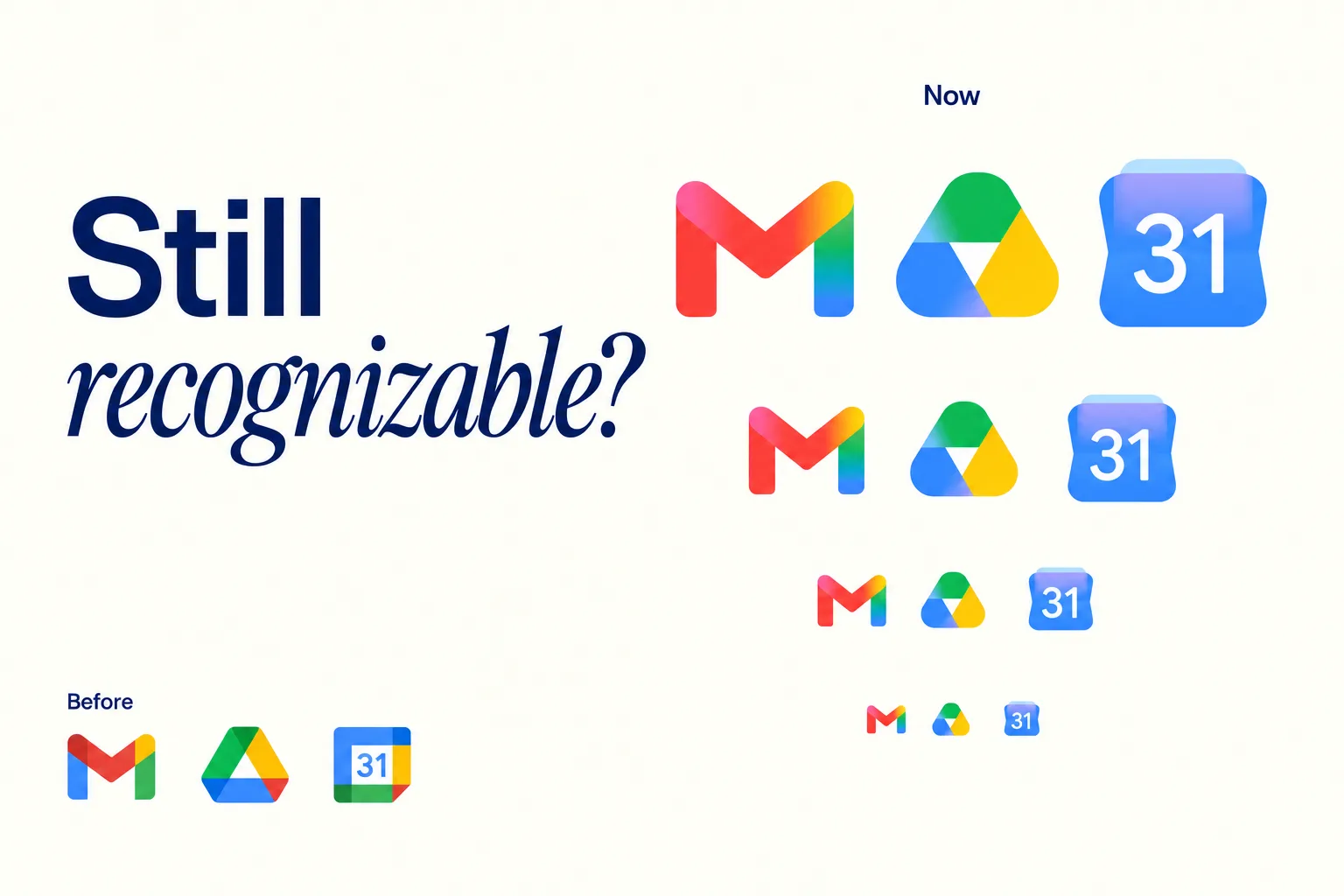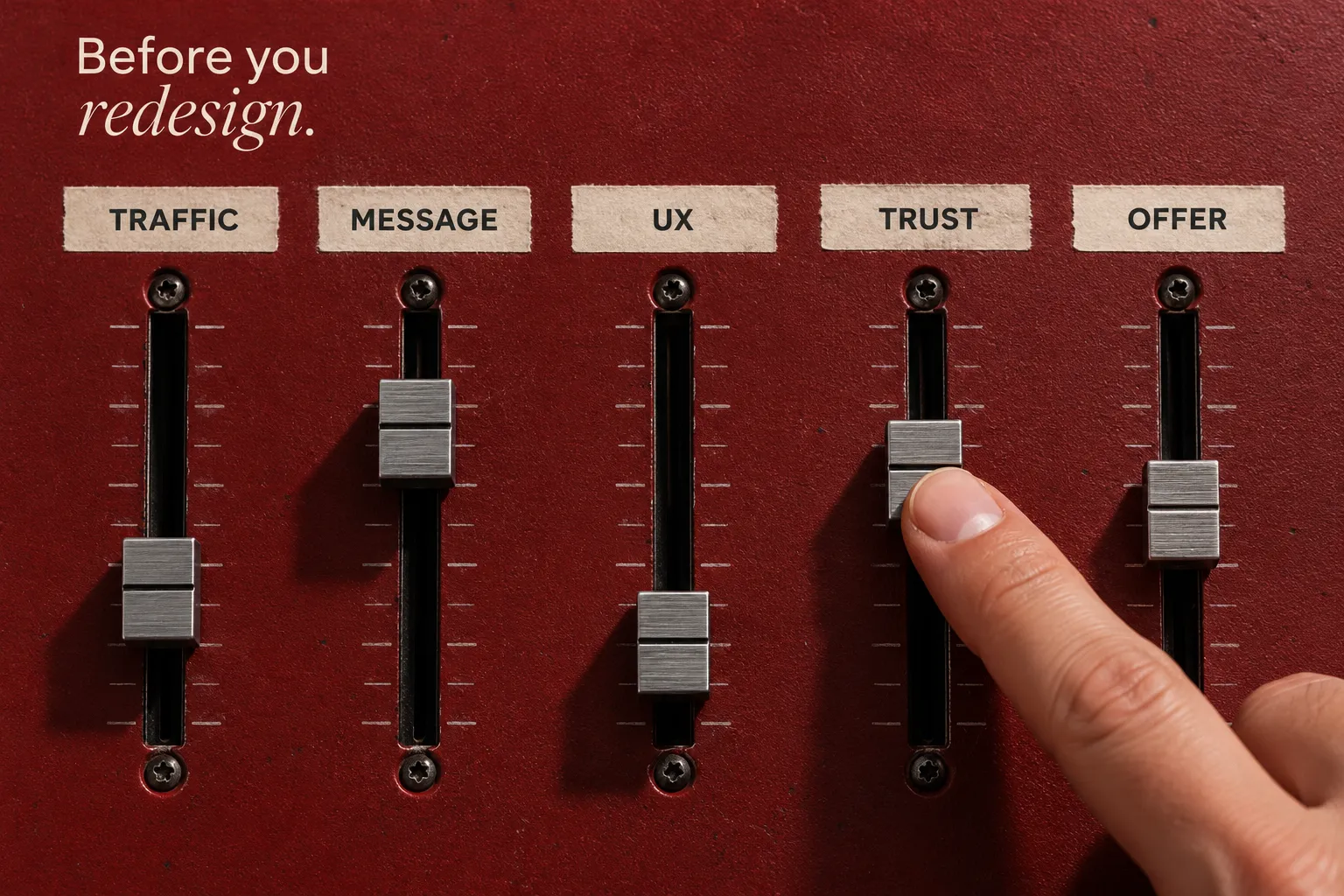

If your logo looks one way on the website, another way on Instagram, and your images take ages to load, customers assume the rest of your business is sloppy. This beginner-friendly visual assets checklist for your brand explains how to tidy up your visual identity, speed up pages, and make every touchpoint look intentional. You’ll learn the basics that Google, accessibility standards, and real users actually care about, so your branding feels polished and trustworthy everywhere.
1) Build one simple brand kit (your “source of truth”)
Your brand kit is the instruction manual for your visual identity. It gathers your logo files, colour palette, font choices, spacing, image style, and a few real examples into one easy doc or Figma page. When everyone pulls visual assets from the same place, designs get faster, quality stays consistent, and hand-offs stop breaking. This consistency isn’t just pretty; multi-year studies show consistent branding is linked to higher revenue and awareness, because customers recognize you faster and trust you more (Marq – State of Brand Consistency).
- Save vector logo masters (SVG/AI), colour codes (HEX/RGB/CMYK), typefaces, spacing rules, and sample layouts in one shared folder or DAM.
- Include do/don’t examples (clearspace around the logo, correct colour use) so every new visual asset matches the system.
Before organizing the individual files, make sure the underlying visual identity system clearly defines the logo, color, typography, imagery, graphics, and layout rules those assets need to follow.

2) Give Google the right logo (and a proper favicon)
Search can show your logo next to your name, but only if it knows which file is the “official” one. Add Logo structured data so Google can reliably pick the correct mark, and provide a clean, high-contrast square favicon referenced in your <head> tag (Google – Logo structured data, Google – Favicon in Search). Naming files clearly and using stable URLs also helps Google understand your visual assets. This small step prevents random, outdated graphics from representing your branding in search.
- Export light/dark/mono logo variants; use readable filenames like brand-logo-primary.svg (not img123.svg) and stable CDN paths.
- Validate your markup with Google’s Rich Results test and fix any warnings before launch.
3) Make images small and fast (without looking bad)
Big, unoptimized images are the #1 reason pages feel slow. Slow pages chase users away and can hurt visibility. Convert photos to modern formats (WebP/AVIF), serve the right size per screen with srcset, lazy-load images that are off-screen, and preload your LCP hero so the main image appears quickly. Together, these moves protect Core Web Vitals—LCP, INP, and CLS—which Google uses to gauge page experience (LCP, INP, CLS). Optimizing visual assets like this keeps your visual identity crisp while making your site feel instant.
- Export hero/product shots in WebP (or AVIF where supported) at realistic pixel sizes; avoid uploading 4000px images for a 1200px area.
- Set width/height (or CSS aspect-ratio) for every image to prevent layout “jumps” as pictures load.
4) Write alt text that makes sense
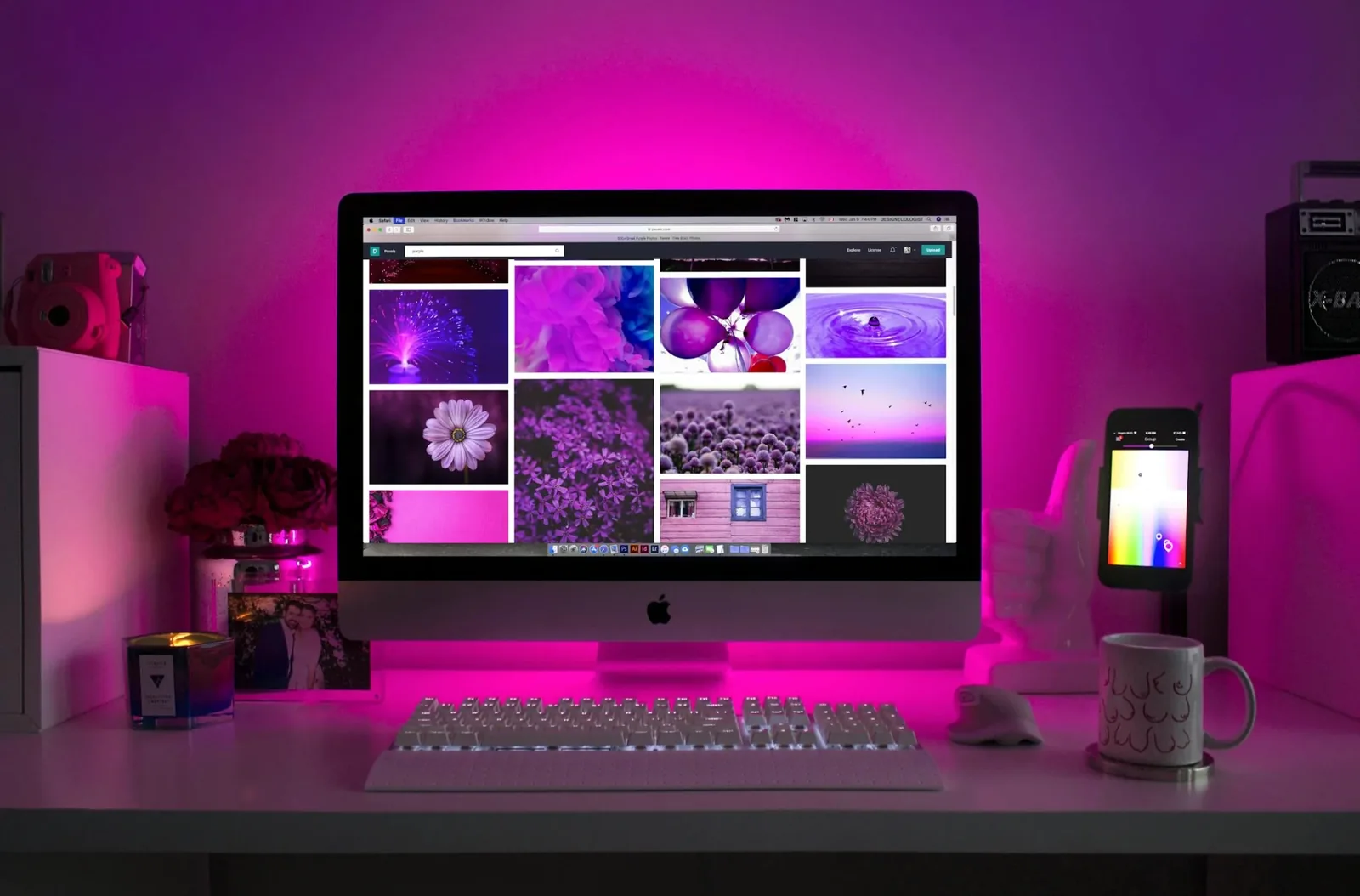
Alt text tells screen readers and Google what an image shows and why it’s there. Keep it short, specific, and helpful: describe the purpose, not just the object. If an image is purely decorative, leave the alt empty (alt="") so assistive tech can skip it. Use real-word filenames and nearby captions when they add clarity. These basics help your visual assets pull their weight for both accessibility and search (Google Images best practices, W3C alt decision tree).
- Example alt: Barista pouring latte art at (coffee shop name) (useful), not image123 (useless).
- Rename files to real phrases like coffee-latte-art.webp to support your branding and page topic.
5) Use colours people can actually read
Pretty colours don’t matter if people can’t read the words. Check contrast so text, buttons, and icons are easy to see against your backgrounds. Aim for WCAG 2.2 AA: contrast of 4.5:1 for normal text and 3:1 for large text or icons (W3C WCAG 2.2). Test light and dark versions of your visual identity, and be careful with text over photos. Readable visual assets make your branding look professional and inclusive.
- Use any free contrast checker and adjust colours until you hit AA or better; don’t forget hover and focus states.
- Avoid baking important text into images; use real HTML text so it scales, translates, and is read by assistive tech.
6) Make social previews look great every time
When someone drops your link into Slack, WhatsApp, or X, you want a clear title, a tight description, and a sharp preview image. Add Open Graph tags (og:title, og:description, og:image) and Twitter Card tags (summary_large_image), then test them. This ensures your branding and visual identity show up the way you expect, which boosts clicks and trust (Meta OG docs, Twitter Cards).
- Use a 1200×630 (or larger) og:image with safe margins so text isn’t cropped; host it on a stable CDN URL.
- Validate links with the Facebook Sharing Debugger and Twitter Card Validator before campaigns go live.
7) Add the right schema so visuals earn rich results
Structured data is a small code snippet that labels your content for Google. Use it for logos, products, videos, articles, and recipes so your visual assets qualify for enhanced displays (stars, badges, bigger thumbnails). Always pair images with useful on-page text—Google relies on the page context to understand and rank visuals (Google structured data – Product, Images best practices).
- Mark up relevant pages with the correct schema type and validate in Rich Results.
- Keep rights metadata (IPTC/EXIF) when helpful for attribution and licensing.

8) Organize files so no one ships the wrong thing
Most “off-brand” moments happen because someone grabbed an old file. Solve this with simple governance: version your visual assets, lock templates, and keep a single, clearly labeled library (a DAM or well-permissioned drive). Consistency across channels reinforces a premium visual identity and reduces rework (Marq – Brand Consistency).
- Use clear names and versions like hero-home-v3-2025-10.webp and keep a short changelog in the folder.
- Set expiry dates for campaign graphics so they don’t resurface months later.
9) Keep video simple, branded, and accessible
Video is a visual asset too. Standardize a few pieces—intro/outro, lower-thirds, thumbnail style—so every clip looks like yours. Compress files, add captions, set a poster frame for fast “first paint,” and include video schema where relevant. This protects performance and accessibility while keeping your branding consistent (web.dev – video performance, Video structured data).
- Always include subtitles; they help with accessibility, silent autoplay, and SEO.
- Keep a reusable thumbnail template that matches your visual identity across YouTube, social, and your site.
10) Make emails, slides, and print match your brand
Your visual identity must work off-site too—email, decks, and print. For email: use crisp but lightweight images, set width/height, add alt text, and test dark mode. For slides: lock master slides and fonts so teams don’t “freestyle.” For print: use CMYK or Pantone recipes, include bleed, and proof colours under real lighting. Consistent branding across surfaces builds trust and recognition (Nielsen – Trust in Advertising).
- Lock slide masters (logo placement, colours, fonts) and share a template folder.
- For posters and packaging, export press-ready PDFs and confirm trim/bleed with your printer.
11) Go beyond images for accessibility
Accessibility is broader than alt text. Make sure keyboard focus is visible and doesn’t get hidden by graphics, respect “reduced motion” preferences in CSS, and keep animations short and subtle. Provide text alternatives when you post image-only announcements. An inclusive visual identity is a professional one—and it’s backed by standards you can check (W3C WCAG).
- Test a key page with a screen reader and keyboard-only navigation each quarter.
- Tone down motion effects or offer a “reduced motion” mode that honours user settings.
12) Quick five-minute check before you publish
A short pre-launch audit catches the biggest issues. Confirm your hero image is fast (LCP under ~2.5s on mobile), your logo schema and favicon validate, social cards render, alt text is meaningful, and colour contrast meets AA. These wins help every visual asset do its job while keeping branding consistent (Google Images best practices, WCAG).
- Run PageSpeed Insights on your top page, fix the heaviest image first, and re-test.
- Paste your link into Slack/WhatsApp to preview the social card one last time.
FAQ
What are “visual assets”?
All the branded visuals you use: logos, icons, photos, graphics, videos, and templates across web, social, email, ads, and print.
Why do images matter for Google?
Fast files plus clear context (alt text, filenames, on-page text, and markup) help Google understand and rank your images (Google Images best practices).
Which image format should I choose?
Start with WebP (or AVIF if supported) for quality + small size; use JPEG/PNG only when needed (web.dev).
Do I really need structured data for my logo?
Yes. It helps search display the correct brand mark and improves consistency in results (Logo structured data).
How do I check if my colours are readable?
Use a WCAG contrast checker and aim for AA or better on text, buttons, and icons (WCAG 2.2).
Check Off and Thrive
Follow this visual assets checklist for your brand and your visual identity will load faster, look sharper, and feel consistent everywhere: site, socials, email, decks, and print. Save the checklist in your brand hub, assign owners, and review it quarterly; small improvements stack into a professional branding presence that never looks amateur.


.webp)