
Mobile-first design means planning content, layout, and interactions for a narrow viewport first, then adding space and capabilities for larger screens. The goal is not a miniature desktop website. It is a complete experience in which people can understand the page, operate its controls, and finish the intended task.
This guide explains how to apply mobile-first design principles to business websites in 2026, from content priorities and responsive layouts to forms, accessibility, and performance. For a redesign, connect those decisions to the wider web design services scope rather than reviewing mobile screens only after desktop designs are approved.
Global figures from StatCounter platform market share provide context, not a forecast of your visitors. Review your own device mix, landing pages, and user tasks. Global mobile usage does not establish where most of your first impressions happen or how much revenue a redesign will generate.
A mobile-first design checklist
- Identify the visitor's primary task and keep the information needed to complete it.
- Start with a narrow layout, then introduce changes where the content needs more space.
- Preserve primary content across screen sizes, following the mobile-indexing guidance from Google for Developers.
- Review loading, responsiveness, and stability together using Google Core Web Vitals guidance.
- Make controls usable without precision tapping and check the WCAG target size minimum and its exceptions.
- Test navigation, form completion, error recovery, and zoom before release.
Mobile-first design, responsive design, and indexing are different
Mobile-first describes the starting point and order of design decisions. Responsive design describes a website's ability to adapt its presentation to the available space and device capabilities. A responsive site can begin with desktop layouts, but that does not make its planning process mobile-first.
Google's mobile-first indexing is a separate search process: Google uses the mobile version of a site's content for indexing and ranking. It is not a requirement to use a particular design tool, and choosing a mobile-first workflow is not a ranking guarantee.
Mobile-first also does not mean mobile-only. A dense reporting application may need substantial desktop-specific interaction design. Keep that workflow useful rather than removing necessary information to fit a phone. For a business website, the practical starting question is which tasks must remain complete and understandable at every supported size.
1. Prioritize the task before arranging the page
Start with one representative journey, such as understanding a service and sending an enquiry. Identify what the visitor needs to know before acting, what evidence supports the offer, and what information the business genuinely needs in return. Do not assume that every page needs the same layout or one identical CTA.
A useful review considers three questions. Can someone understand the offer and next step? What effort is required to complete the task? Does the interface remain stable and responsive while they do it? Count taps and fields to locate unnecessary work, not to impose an arbitrary maximum.
When priorities are uncertain, use existing support questions, sales feedback, and UX research rather than treating internal preference as user evidence. A phone user may still need detailed pricing context, specifications, or proof. Prioritization means organizing that information, not deleting it.
A practical service-page example
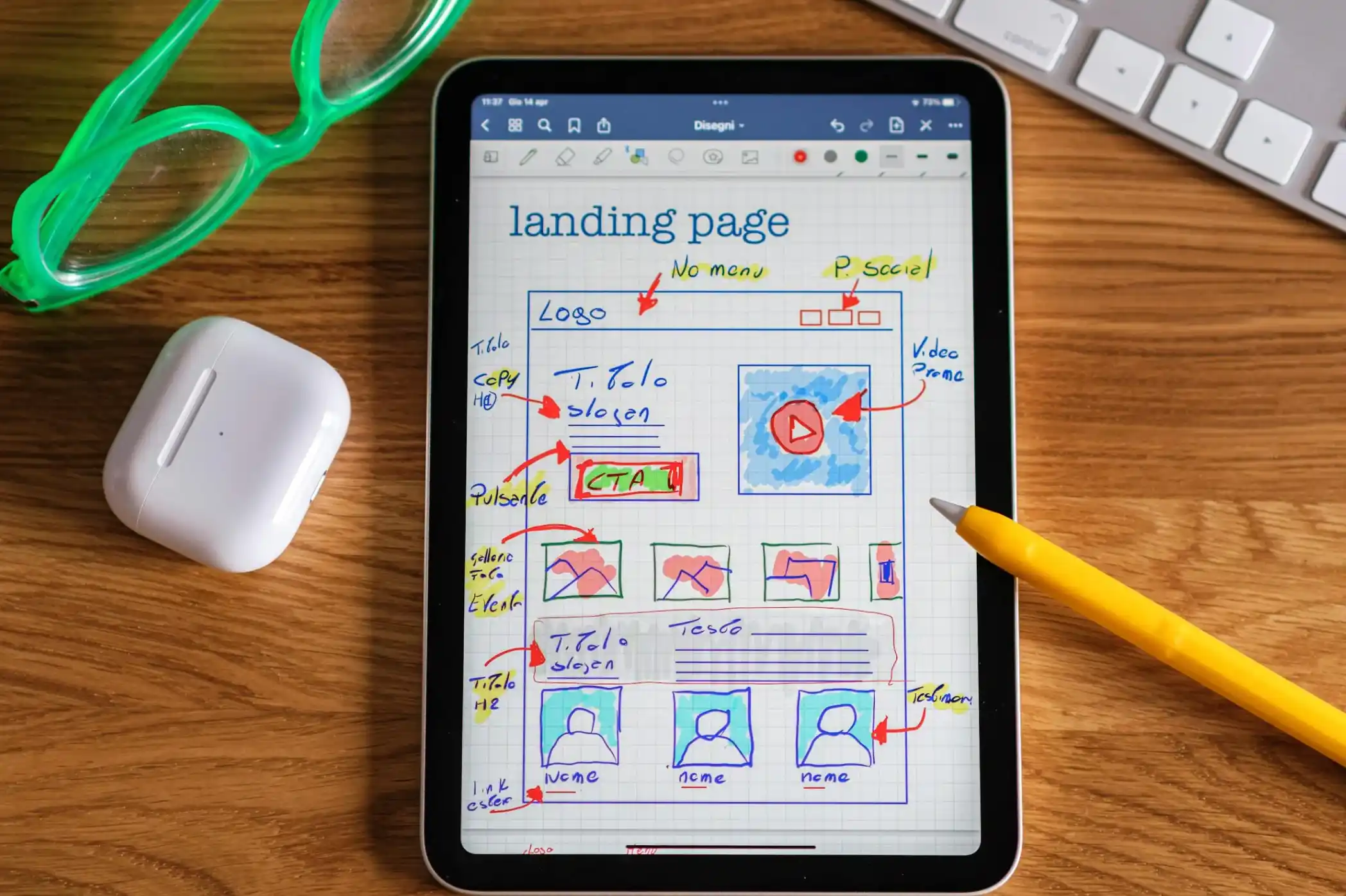
Imagine a hypothetical equipment-maintenance company. Its desktop page opens with a large video, three equal promotional panels, and a contact button below them. On mobile, simply stacking those elements makes the introduction longer without helping someone decide whether the service is relevant.
A mobile-first outline could instead introduce the service and coverage area, explain the maintenance options, show relevant evidence, and provide a descriptive enquiry link. Detailed specifications can follow under clear headings. On a wider screen, related information can sit side by side without changing the underlying reading order or removing detail from mobile.
This is an illustrative design decision, not a tested result or a claim that a particular layout will increase enquiries. Compare the proposed structure with the questions actual customers ask.
2. Build fluid layouts and content-based breakpoints
Begin with a readable single-column layout and widen it until the content benefits from a change. Add a breakpoint when navigation becomes cramped, cards become awkwardly wide, or a comparison becomes easier to follow in columns. Do not choose every breakpoint from a list of phone model widths. Google's responsive design guidance recommends letting the content determine those transitions.
Ask the implementation team to use flexible layout rules, constrain media to their containers, and include the appropriate viewport configuration. The layout should respond to available space rather than assume that a particular width means a mouse or a touchscreen. Browser zoom must remain available.
Review the spaces between breakpoints, not just the polished mockups. Resize slowly and look for clipped buttons, overflowing headings, broken card grids, and content that changes order unexpectedly. Also check portrait, landscape, and split-window layouts when they are relevant to the supported experience.
Make typography and visual identity work at narrow widths
Use real headings, realistic paragraph lengths, and the longest likely button labels when testing. Avoid fixed-height text containers that only work with the sample copy. Long names, translations, and enlarged text should not obscure an action or truncate essential information.
Carry the same visual identity across screen sizes through a consistent type hierarchy, spacing, and image treatment. Smaller screens may need a different arrangement, not a different brand. Keep important explanations in page text rather than inside a graphic that becomes unreadable when scaled down.

3. Design touch controls without neglecting other input methods
People hold phones in different ways, and reach changes with the device, grip, and task. Treat a thumb-zone diagram as a design hypothesis, not a universal placement rule. Test frequently used actions in the actual layout, including when the keyboard is open.
Distinguish the minimum target size from a larger design target
WCAG 2.2 Level AA criterion 2.5.8 generally requires pointer targets to be at least 24 by 24 CSS pixels or meet an exception. The WCAG target size minimum includes spacing, inline text, equivalent controls, user-agent controls, and essential-presentation exceptions. A small inline link is not automatically a failure.
For standalone buttons, a larger activation area is often a sensible design choice. The separate Level AAA enhanced target-size criterion uses 44 by 44 CSS pixels, with exceptions. Do not present 44 pixels as the general Level AA minimum or confuse CSS pixels with physical screen pixels.
An icon's artwork can be smaller than its activation area. Make that area clear and ensure neighboring targets do not overlap. Check checkboxes, dismiss buttons, pagination, and menu controls as carefully as the main CTA.
Use sticky elements only when they help
A modest sticky action can keep a useful next step available, but it also consumes screen space. Test it with the cookie notice, chat control, expanded menu, and on-screen keyboard together. Remove or adapt the pattern if it obscures content, covers a field, or leaves too little room to read.
Do not make important information available only on hover or through a swipe gesture. Provide understandable controls and a usable keyboard path. This is part of interaction design: define opening, closing, focus, loading, and error states, not just the default appearance.
4. Keep the mobile content complete and accessible to search
Manage a long page with descriptive sections and, where appropriate, accessible disclosure controls. Do not hide the service explanation, evidence, or key conditions from mobile visitors simply to shorten the screen.
The mobile-indexing documentation linked under Google Developers Blog permits content to use a different mobile presentation, including tabs or accordions. Primary content should remain equivalent, with consistent metadata, structured data where used, and meaningful image alternatives. Google also warns against loading primary content only after an interaction such as a click or swipe.
A collapsed section and content that has not been loaded are different implementation choices. Ask the developer to confirm what the mobile page actually renders and what a crawler can access. Styling alone cannot answer that question.
For a redesign involving search visibility, an SEO agency can coordinate the content and migration review. Issues involving crawl access, indexing directives, or rendered content belong in a technical SEO review, not a last-minute keyword pass.
5. Reduce form effort and make recovery predictable
Every field should have a reason to exist at that stage. Keep information needed for routing or fulfilment, but defer details that can be collected later. A shorter form is not automatically better if it creates confusing follow-up or removes a necessary qualification question. The contact form UX guide explores that trade-off.
Prefer a clear top-to-bottom sequence. Use persistent, programmatically associated labels rather than relying on placeholder text that disappears while typing. The W3C form-label guidance explains the relationship between visible labels and accessible input names.
Support appropriate autofill with meaningful field names and autocomplete attributes. Request the keyboard suited to the input. A quantity and a numeric-looking identifier are different: MDN notes that number inputs are not appropriate for every string of digits, including postal codes and payment-card numbers. A keyboard hint does not validate the entry.
Make errors specific, associate them with the relevant field, and provide an accessible route back to the problem. A failed submission should not silently erase valid entries. Success and failure need distinct feedback so people know whether their request went through. W3C's form-notification guidance covers field feedback, error summaries, and confirmation messages.
At the commitment point, explain what happens next using promises the team can actually keep. For checkout, make the order and relevant costs understandable before confirmation. For enquiries, explain the response process and link to appropriate privacy information. Consistent branding supports those explanations, but visual reassurance cannot replace accurate policies or a working form.
6. Treat performance as part of the design
Decide which content must appear promptly, which interactions must respond immediately, and which extras can wait. A large hero video, multiple font families, or a third-party widget needs a reason to consume resources. Do not assume that shrinking its visible dimensions reduces its download or processing cost.
Measure all three Core Web Vitals
The Google Core Web Vitals guidance covers loading, interaction responsiveness, and visual stability. The current good-experience thresholds in the Web Vitals documentation are:
- Largest Contentful Paint (LCP) of 2.5 seconds or less, for loading.
- Interaction to Next Paint (INP) of 200 milliseconds or less, for responsiveness.
- Cumulative Layout Shift (CLS) of 0.1 or less, for visual stability.
Evaluate these at the 75th percentile of page loads, separating mobile and desktop. A single fast test does not establish that real visitors meet all three thresholds. The announcement INP becomes a Core Web Vital documents INP's replacement of FID in March 2024; this was not a new change introduced in 2026.
Use lab testing to reproduce and diagnose problems, and field data to understand measured user experiences. Where field data is unavailable, report that limitation rather than treating a lab score as proof. Good scores are useful performance evidence, not a guarantee of rankings or conversions.
Set an explicit media and interaction budget
Agree on limits for image weight, font use, scripts, and third-party additions based on representative pages and devices. There is no single file-size budget that suits every site. Record an owner, a measurement method, and what happens when a new component exceeds the agreed limits.
Optimize the image that actually supplies the page's largest visible content. Google's LCP optimization guidance warns against lazy-loading the LCP image. Lazy-loading a below-the-fold illustration and delaying the main hero are not equivalent choices. Reserve image space so content does not jump when media arrives.
Review heavy interactions as well as initial loading. Test opening a menu, changing a filter, and submitting a form after other page activity. A UI UX design agency can help define the intended behavior alongside developers responsible for implementation and performance diagnosis.

7. Test accessibility and the complete mobile journey
Check text enlargement and narrow-screen reflow separately. WCAG's resize-text criterion addresses enlarging text to 200 percent without losing content or functionality, subject to its scope. The reflow criterion addresses an equivalent 320 CSS-pixel-wide viewport for vertically scrolling content, with exceptions for content that genuinely requires a two-dimensional layout.
These checks can expose clipped text, horizontal page scrolling, and controls covered by fixed elements. Check keyboard focus, screen-reader names and states, and whether errors can be understood without color alone. Apply the WCAG target size minimum to the implemented controls, not only to measurements in a design file.
Use the broader accessibility testing checklist for a structured review. Neither this article nor a clean automated scan demonstrates full accessibility conformance.
For release testing, include:
- A visitor finding the relevant service or product through the mobile navigation.
- A complete enquiry or checkout, including a deliberate input error and successful recovery.
- Long content, enlarged text, portrait and landscape views, and widths between breakpoints.
- The keyboard, overlays, and sticky controls operating together without covering the task.
- Representative real devices and constrained network conditions, alongside browser-based checks.
- Mobile content, important links, and metadata remaining available after the final build.
Record the device, browser, steps, expected behavior, and actual outcome for each issue. Prioritize barriers that block a task, then significant friction and remaining presentation issues. Recheck the affected journey after a fix rather than assuming the original failure has disappeared.
8. Keep mobile quality intact after launch
Document component rules for spacing, text wrapping, target areas, media, and interactive states. Include realistic content examples so future editors know which changes require another review. New scripts, larger images, longer labels, and extra banners can undermine a previously tested layout.
For teams using Webflow, a Webflow web design agency can translate these requirements into the implementation and publishing workflow. CMS editing, responsive component behavior, and technical testing need clear ownership; changing article content is not a substitute for fixing a shared template.
Maintain the routes between related content and useful commercial pages. The internal linking strategy guide explains how to organize those pathways. On campaign pages, review mobile usability alongside message match, proof, and high-converting landing page elements, without treating any one element as a guaranteed result.
Track completed tasks, form errors, and relevant business outcomes alongside performance. Compare like-for-like periods and traffic sources. A change in mobile conversion may reflect the offer, audience, tracking, or sales process as well as the interface. Use observed problems to choose the next test instead of attributing every movement to the latest design edit.
Start with the most important mobile journey, resolve its visible barriers, and carry the resulting rules into the wider site. Mobile-first design is useful when it makes prioritization and testing more deliberate, not when it becomes another slogan.
For an outside perspective on your mobile experience, discuss your website with Brand Vision.


webp.webp)














.webp)