Running a local business means being visible where customers search for nearby products and services. Google Business Profile is the system Google uses to manage how eligible businesses appear across Google Search and Maps. This guide explains how to add your business to Google Maps, claim an existing profile, complete verification, and keep the listing useful after it goes live.
The setup itself is free, but accuracy matters. Your business name, category, address or service area, phone number, website, and hours should reflect how the business operates in the real world. Once the profile is established, it becomes part of a broader local SEO system that can help customers discover and evaluate your business.
Why Your Business Needs Google Maps
Local searches often happen close to a purchase or visit. Google research has reported that 76% local searches translate into in-person visits within 24 hours. A complete Business Profile gives searchers practical information such as hours, phone number, directions, photos, services, and reviews when they are deciding where to go or whom to contact.
A profile does not guarantee a top Maps position. Google says local results are mainly based on relevance, distance, and prominence. Complete and accurate information helps Google understand the business and gives potential customers a clearer first impression. For businesses working on the wider search experience, Brand Vision connects local visibility with the website and broader digital presence.
Step One: Create or Access a Google Account
You need a Google Account to create, claim, verify, and manage a Business Profile. You can use an existing Google Account with a Gmail address or another email address. If you do not already have one, you can sign up for a new account. Using a dedicated business email can make ownership and team access easier to manage over time.

Step Two: Add Your Business to Google
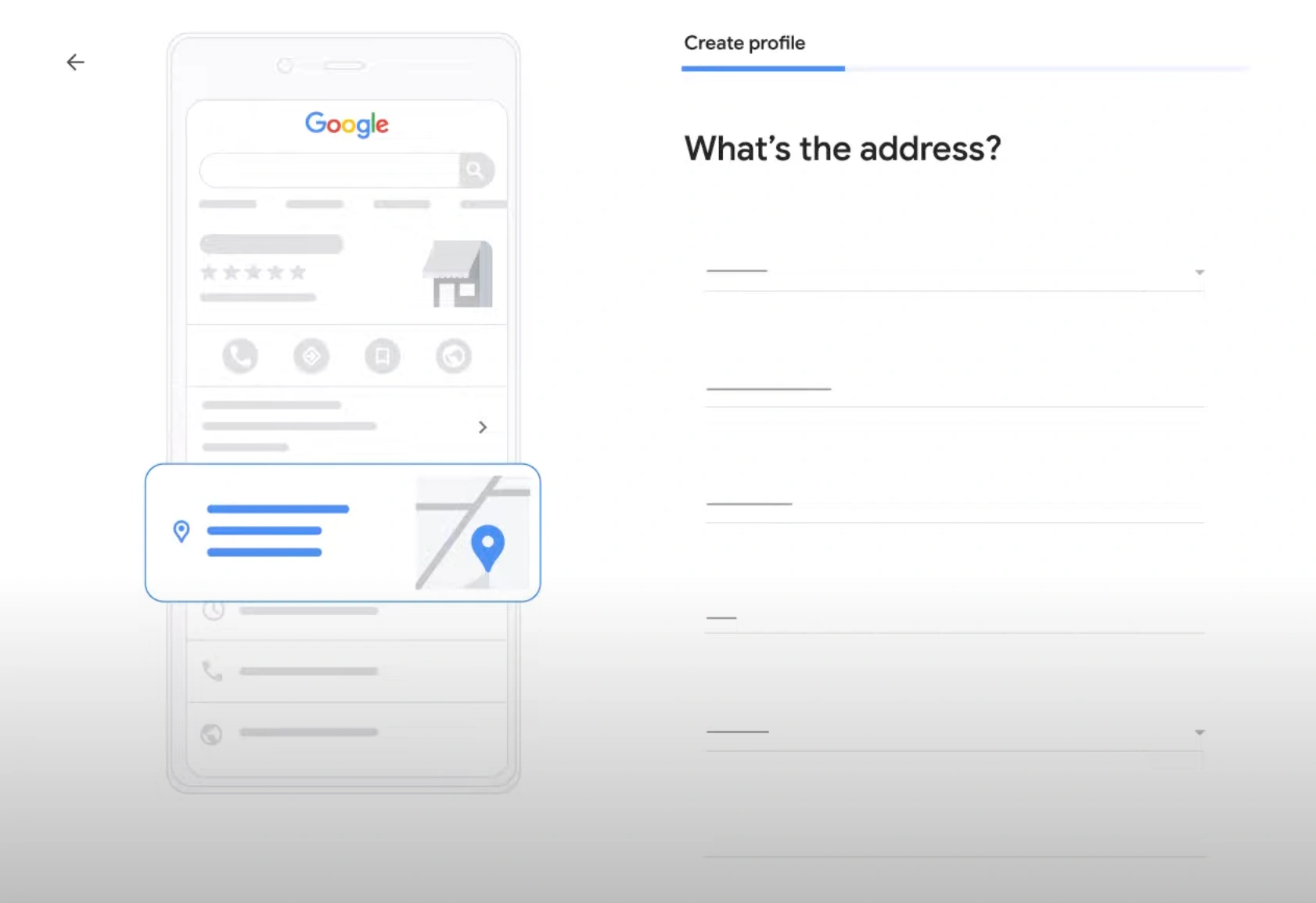
If no Business Profile exists for your business, Google’s current documented setup starts at business.google.com/add. Select “Add your business to Google,” enter the requested business details, and follow the on-screen instructions. Google then presents the verification option or options available for that specific profile.
- Search Google Maps first to make sure a profile does not already exist for the business. You can Enter your address in the search bar. and check the results.
- If no profile exists, open the Google Business Profile add flow and enter the business name, category, and contact details.
- For a storefront, provide an accurate customer-facing location that follows Google’s address rules.
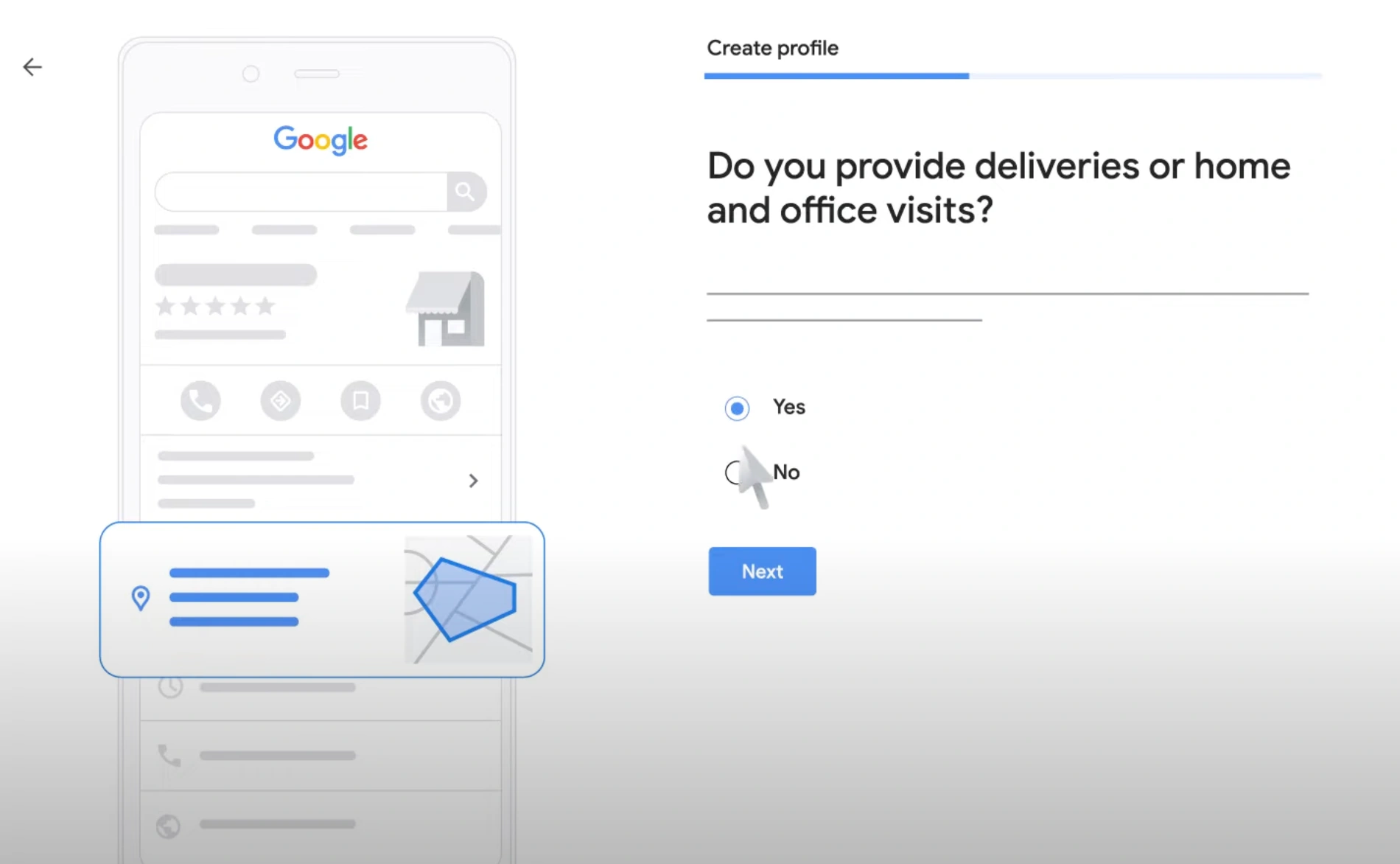
- For an eligible service-area business that travels or delivers to customers, configure a service area and hide the address if customers are not served there.
Google allows service-area businesses to specify up to 20 service areas. If customers do not visit your business address, Google says the public address should be removed from the profile. Online-only businesses that do not make in-person contact with customers are not eligible for a Business Profile.

Step Three: Claim an Existing Listing
Sometimes a business already appears on Google Maps even though the owner has not managed the profile. If the profile is unverified and belongs to your business, you can claim it:
- On a computer, open Google Maps.
- Search for the business name and city.
- Select the correct business profile.
- Click “Claim this business” and then press “Manage now.”
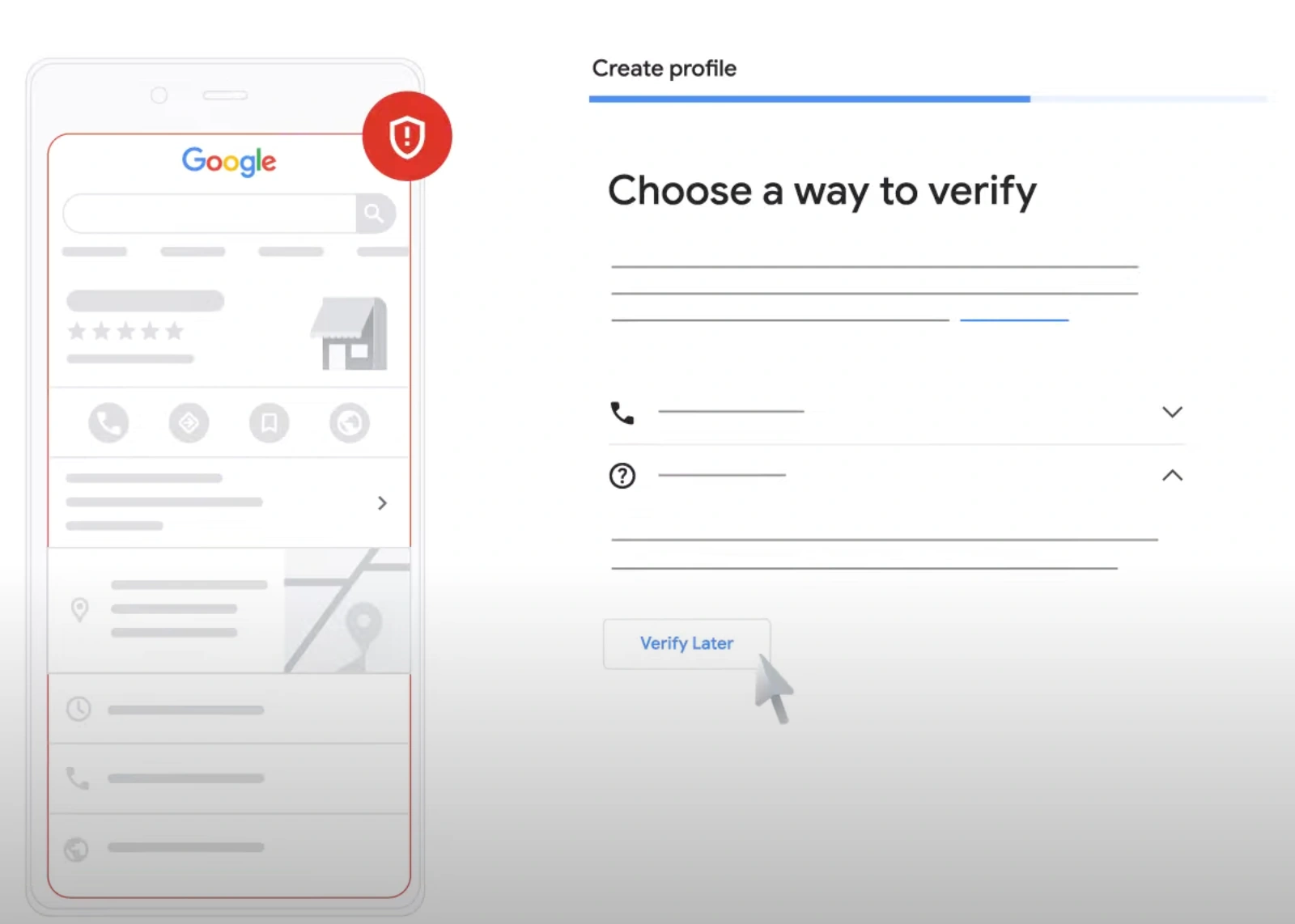
If the profile has already been verified by someone else, an authorized representative can request ownership rather than creating a duplicate profile. Verification methods are determined automatically by Google and can vary by business type, region, public information, and other factors. Depending on the profile, Google may offer options such as video, phone or text, email, live video, or mail, and some businesses may need more than one method.
Polish Your Google Business Profile
Once the profile is created or claimed, complete the information customers actually use. Brand Vision’s Google Business Profile optimization guide goes deeper into categories, services, photos, reviews, tracking, and troubleshooting.
- Upload clear, current photos that show the storefront, team, products, or work where appropriate.
- Keep regular hours accurate and Don’t forget weekends and special occasions when temporary or holiday schedules change.
- Confirm the phone number and website are correct so customers reach the right destination.
- Choose the most accurate primary category and add only additional categories that genuinely describe the business.
- Add relevant services, attributes, and a concise description that reflects what the business actually offers.
Keep your profile information consistent with the information customers see on your website. The goal is not to fill every field with keywords. It is to make the profile accurate, complete, and useful.
Respond to Reviews and Customer Questions
Verified businesses can reply to Google reviews. Google recommends professional, relevant responses because they show customers that their feedback matters. Reviews and positive ratings can also contribute to the prominence side of local ranking, but replying to a review should be treated as reputation management rather than a guaranteed ranking tactic.
- Thank customers when a response adds something useful instead of posting the same generic reply every time.
- For negative feedback, stay professional, protect customer privacy, and when appropriate offer a resolution, and use the feedback to improve.
- If a review violates Google’s policies, report it through the Business Profile review tools rather than arguing publicly.
Customer feedback is also useful beyond rankings. Patterns in reviews can reveal recurring service issues, common questions, and details customers value, all of which can inform the business’s wider local search strategy.

Monitor Your Listing and Performance
Creating the profile is only the first step. Business information changes, customer behavior changes, and Google can surface new profile features over time. Review the profile periodically and keep the details current.
- Update hours, services, phone numbers, website URLs, and other business information when they change.
- Use Google Business Profile Performance to review available interactions such as views, website clicks, calls, direction requests, bookings, and search terms. For your website itself, Google Search Console also provides performance reports. Together, these signals can guide marketing decisions.
- Use profile updates, offers, or events when they are genuinely useful to customers rather than posting only to make the listing look active.
Local ranking varies by query and searcher location, so there is no single permanent Maps position to monitor. Google describes relevance, distance, and prominence as the main local ranking factors.
Frequently Asked Questions About Google Maps for Business
How long does it take for my business listing to appear?
There is no universal verification timeline. Google determines which verification methods are available for each profile, and some businesses may be asked to complete more than one method. Follow the verification prompt shown for your Business Profile and avoid creating a duplicate profile while verification is underway.
What details should I include in my Google Maps listing?
Keep the business name, address or service area, phone number, website, operating hours, primary category, relevant services, photos, and description accurate. Add only information that reflects how the business operates in the real world.
Can I list my business if I do not have a customer-facing storefront?
Yes, if the business is otherwise eligible and makes in-person contact with customers, such as a plumber, cleaner, or mobile service that travels to customers. In that case, you can set up a service-area Business Profile and hide the address when customers are not served there. Online-only businesses are not eligible.
How do I update my business information on Google Maps?
Sign in to the Google Account that manages the profile, find the Business Profile in Google Search or Maps, and edit the relevant information. Some changes can require review or additional verification.
Turn the Listing Into a Stronger Local Search Presence
Adding your business to Google Maps gives eligible local businesses a managed presence across Search and Maps, but the profile works best when it stays accurate and is supported by a useful website, real customer reviews, and relevant local authority. If your business travels to customers, use our guide to local SEO for service area businesses for the next steps.
If your profile is already live but local visibility is weak, Brand Vision’s SEO agency can help connect Business Profile optimization, website content, technical SEO, and local search strategy.