
If you’ve ever wished your iPhone camera could do more than just snap photos, visual intelligence might be the game-changer you’ve been waiting for. Available on select models running iOS 18 or later, visual intelligence uses on-device AI (Apple Intelligence) to gather real-time information about the places and objects around you. From spotting a new restaurant’s hours to identifying an exotic plant or translating text on a poster, visual intelligence turns your camera into a powerful digital assistant.
In this guide, we’ll answer your top questions about visual intelligence on iPhone: what it is, how to set it up, and how to use it effectively. Whether you want to plan a night out, schedule an event straight from a flyer, or get quick translations, visual intelligence has you covered.
1. What Is Visual Intelligence on iPhone?
Visual intelligence is an on-device feature that combines your iPhone camera with Apple’s AI capabilities (Apple Intelligence). Simply open the camera (or hold the Camera Control on certain iPhone models) and point it at a restaurant, business, plant, text, or object. Your iPhone then processes what it sees, offering relevant information and actions:
- Business details: Check hours, make reservations, or place an order.
- Plant or animal info: Identify the species in front of you.
- Text actions: Summarize, translate, or read text aloud.
- ChatGPT queries: Ask questions about objects you see.
- Google image search: Find visually similar items online.
This feature streamlines tasks that used to involve multiple apps, making your iPhone an even smarter companion.

2. Which iPhones Support Visual Intelligence?
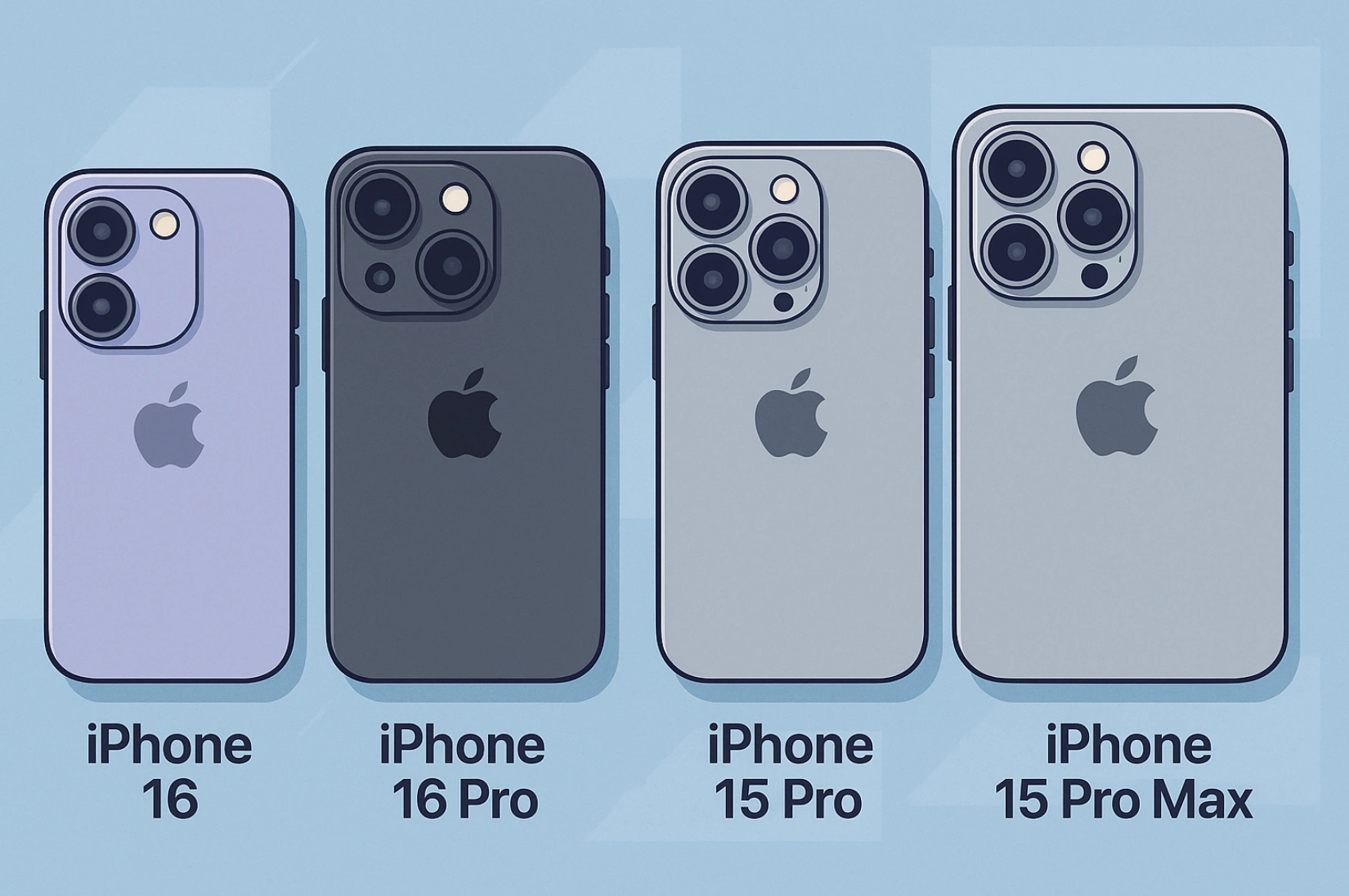
Currently, visual intelligence is available on the following devices (with minimum iOS versions noted):
- iPhone 16, 16 Plus, 16 Pro, 16 Pro Max (iOS 18.2 or later)
- iPhone 16e (iOS 18.3 or later)
- iPhone 15 Pro, iPhone 15 Pro Max (iOS 18.4 or later)
Additionally, you must have Apple Intelligence turned on. Be aware that some features might not be available in all languages or regions. For specifics on language and region availability, see Apple’s official support article “How to get Apple Intelligence.”
3. How to Turn On and Access Visual Intelligence
Step-by-Step Access on Supported Models
- Use the Camera Control:
- Press and hold the Camera Control on the side of your phone. This button may differ slightly by model (some call it the Action button).
- Point your camera at the subject (business, text, plant, etc.).
- Tap or press the Camera Control again (if needed) to view more details.
- Press and hold the Camera Control on the side of your phone. This button may differ slightly by model (some call it the Action button).
- Alternate Access Options (iPhone 16e, 15 Pro, 15 Pro Max)
- Action Button: Customize it to launch visual intelligence instantly.
- Lock Screen: Add a visual intelligence control at the bottom of your Lock Screen for quick access.
- Control Center: Swipe down from the top-right corner and tap the visual intelligence button.
- Action Button: Customize it to launch visual intelligence instantly.
Note: Ensure Apple Intelligence is enabled in Settings so visual intelligence can function properly.
4. Getting Information About Businesses
Ever see a restaurant or shop and wonder if it’s open or whether they do delivery? Visual intelligence lets you:
- Press and hold the Camera Control to activate visual intelligence.
- Point your iPhone at the business in front of you.
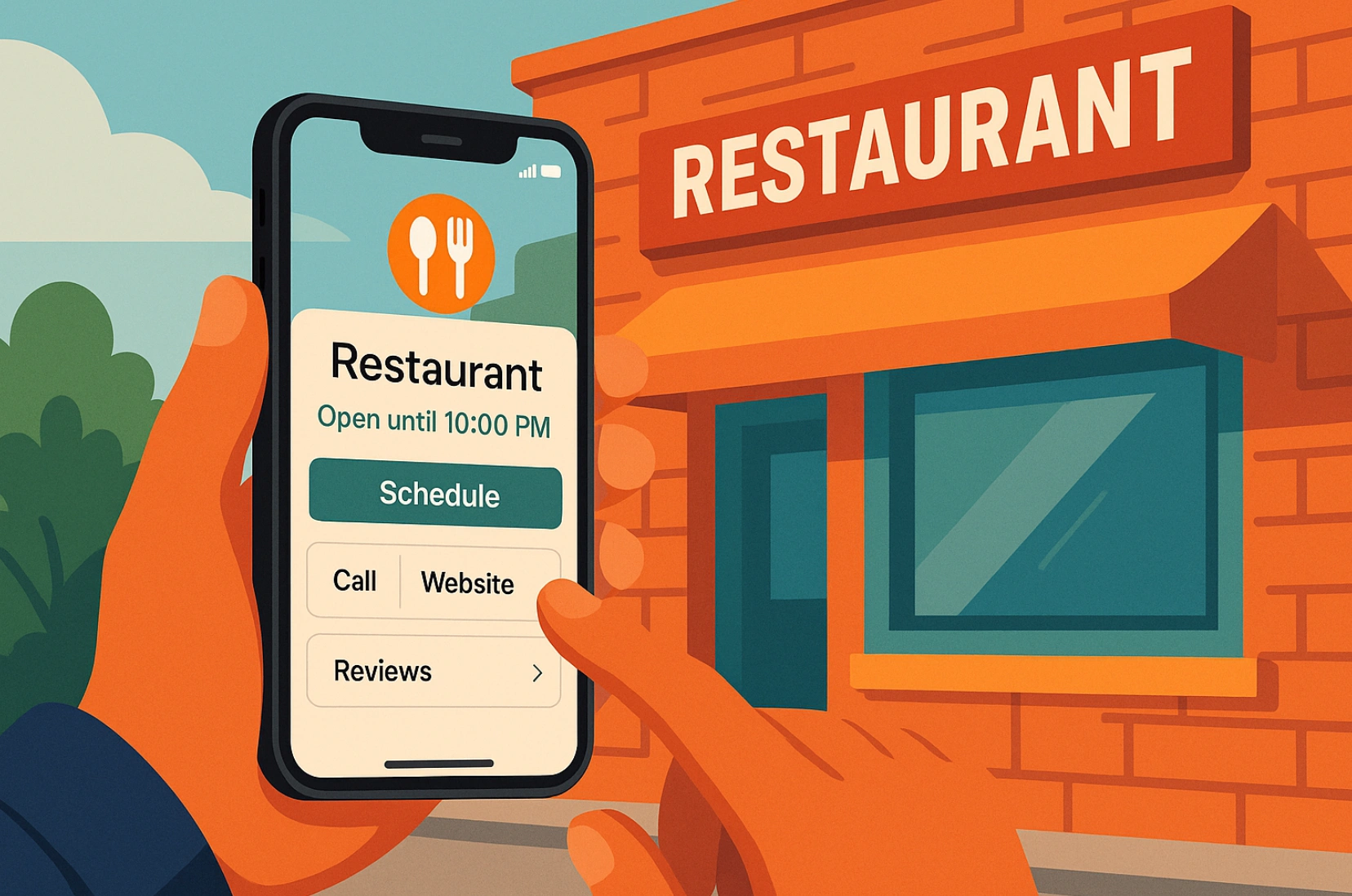
- When the business name appears at the top of the screen, tap it or press the Camera Control again for options like:
- Schedule: Check operating hours.
- Menu or Services: See offerings or make a reservation.
- Order: Place a delivery order (U.S. only).
- Reserve: Book a table if available.
- More: Call the business, visit its website, or read reviews and ratings.
- Schedule: Check operating hours.
Tip: This is particularly handy when you’re visiting a new city or scoping out nearby takeout options. You get real-time info without having to type the business name into a separate app.
5. Identifying Plants and Animals
For the nature lovers out there:
- Press and hold the Camera Control to open visual intelligence.
- Aim your camera at a plant or animal.
- Tap the result at the top of the screen to see details like species name, habitat info, or interesting facts.
- Close the results, then swipe up to exit visual intelligence when done.
Whether you’re on a hike or just curious about a plant in your backyard, visual intelligence helps you quickly learn about the natural world around you.
6. Interacting with Text: Summarize, Translate, Read Aloud
This is a huge time-saver when you encounter text in another language or want a quick summary:
- Activate visual intelligence (Camera Control or alternate method).
- Point your camera at any printed text (signs, documents, flyers).
- Tap the circle at the bottom of the screen or press the Camera Control again to analyze the text.
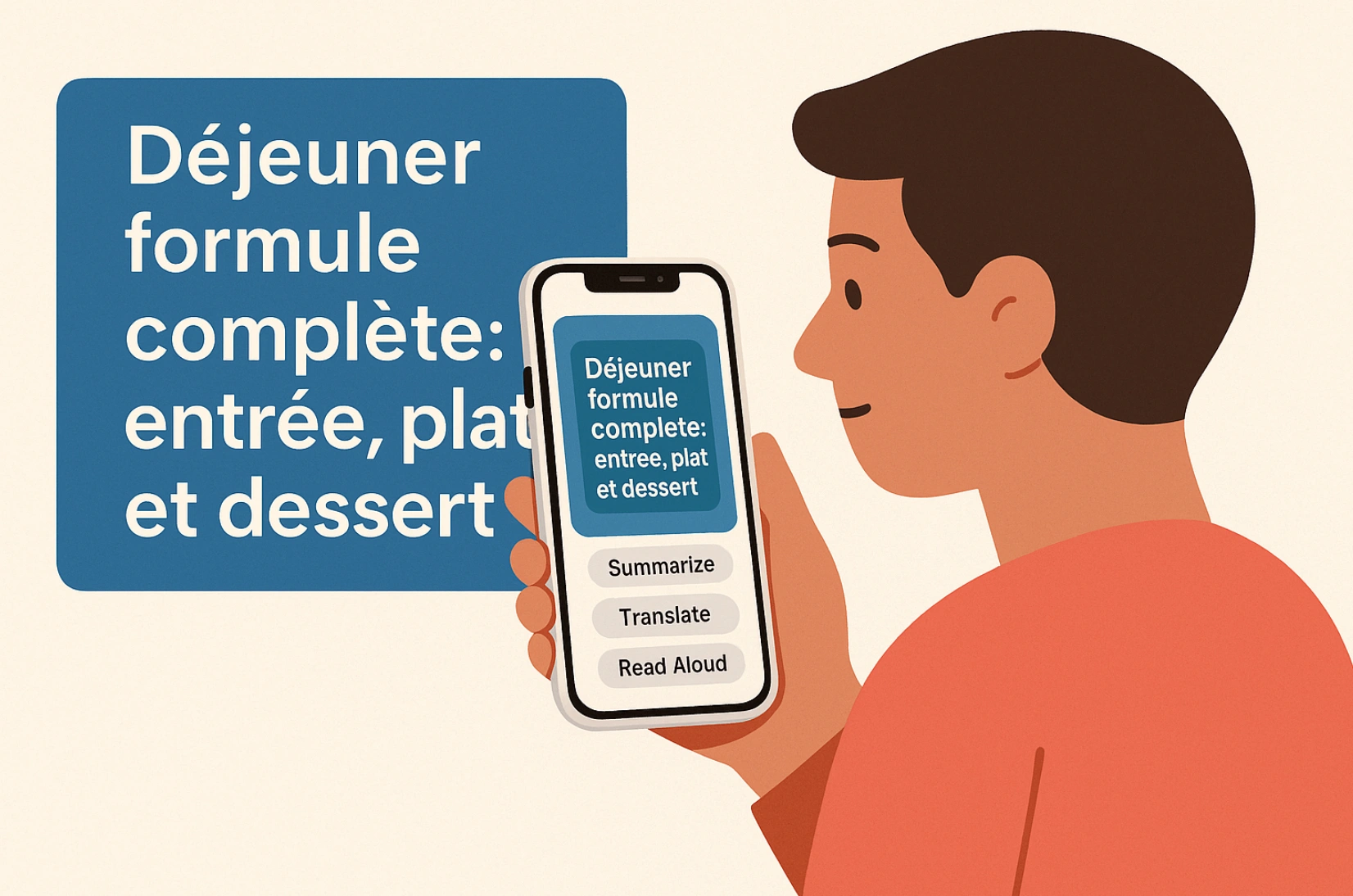
- Choose an action at the bottom:
- Summarize: See a concise version of longer text.
- Translate: Convert text into your preferred language.
- Read Aloud: Listen to the text without manually reading it.
- Summarize: See a concise version of longer text.
- If the text includes a phone number, email, or website, tap those to perform quick actions (like calling or visiting the site).
Example Use Case: Snapping a photo of a foreign language menu and getting instant translations or summaries, saving you the hassle of typing phrases into a separate translation app.
7. Creating Calendar Events from Posters or Flyers
Ever see a concert flyer or a future event date and want to add it to your Calendar immediately?
- Hold the Camera Control to launch visual intelligence.
- Tap Create Event when it appears at the top.
- Tap Schedule to confirm. Optionally, hit Edit to adjust details like event title or reminders.
- The event automatically appears in your Calendar app.
No more forgetting important dates or manually typing event details. A single tap can save you from missing out on upcoming happenings.
8. Asking ChatGPT Directly
If you have a ChatGPT account linked to Apple Intelligence, visual intelligence can funnel your camera’s view straight to ChatGPT:
- Open visual intelligence and point your camera at an object.
- Tap Ask to send the image context to ChatGPT.
- Type or dictate any follow-up questions about the object.
- Review ChatGPT’s response and close the window when finished.
Note: This feature integrates ChatGPT’s knowledge with your device’s camera, so you can ask deeper or more contextual questions than what the basic object identification might provide.

9. Searching Google for Similar Items
Interested in finding a product or something similar to what’s in front of you?
- Activate visual intelligence (Camera Control, Action button, Lock Screen, or Control Center).
- Point your camera at the item.
- Tap Search to have visual intelligence pull up Google image results for similar products or images.
- Explore the results and tap Close when done.
Practical Uses: If you see a piece of furniture or a clothing item you like, one tap can help you compare prices or styles online.
Ready to Give It a Try?
Visual intelligence on iPhone takes convenience to a new level, helping you identify anything from local businesses to animals and foreign text in real time. It consolidates multiple separate tasks (like looking up addresses or copying numbers) into a single, seamless camera experience. As long as you have a compatible iPhone running the required iOS version, you can tap into these features anytime. Whether you’re a traveler, a student, a nature enthusiast, or just someone who loves efficiency, this is one tool you won’t want to miss.
- Make sure you’ve updated your iPhone to the required iOS version.
- Enable Apple Intelligence in Settings.
- Look for the Camera Control (or add it to your Lock Screen or Control Center).
- Point, tap, and enjoy instant info. No extra searching required.
With visual intelligence, your iPhone becomes a next-level assistant, offering immediate insights into the world around you. So go ahead—start exploring and see what new possibilities open up at the click of a button!

%2520(1).png)
.png)