
Let’s face it: there is nothing more frustrating than capturing the perfect shot, only to realize later that the audio is a disaster. Maybe it was a windy day, a buzzing air conditioner in the background, or just the general hum of city traffic. Whatever the culprit, bad audio can ruin even the most visually stunning video. We’ve all been there, sitting in the editing bay, wondering if we have to scrap the whole scene.
But don’t panic just yet! If you are editing in Adobe Premiere Pro, you have a powerful suite of tools right at your fingertips to salvage your footage. And for those times when you need a quick, AI-powered fix without diving into complex audio engineering, there are incredible online tools available to help you out in seconds.
In this article, we’re going to walk you through the most effective methods to remove background noise from video in Premiere Pro. Plus, we’ll introduce you to a secret weapon—EaseUS Vocal Remover—that can handle not just noise reduction, but also vocal isolation and track splitting with impressive AI accuracy.

Why Clean Audio Matters
Before we dive into the "how-to," let’s briefly touch on the "why." Viewers are generally forgiving of slightly grainy video, but bad audio? That’s a dealbreaker. Hissing, crackling, or rumbling background noise is distracting and unprofessional. It pulls your audience out of the story you’re trying to tell. Cleaning up your audio tracks ensures your dialogue is crisp, your message is heard, and your video retains that high-production value that keeps people watching.
Method 1: The Essential Sound Panel (The Beginner’s Best Friend)
If you are new to Premiere Pro or just want a quick fix without tweaking a dozen knobs, the Essential Sound Panel is your best bet. Adobe designed this panel specifically for editors who might not be audio engineers but still need professional results.
Step-by-Step Guide:
- Open the Panel: In Premiere Pro, go to the top menu bar, click on Window, and select Essential Sound. This will open a new panel on the right side of your workspace.
- Assign Audio Type: Select the audio clip you want to fix in your timeline. In the Essential Sound panel, you’ll see four categories: Dialogue, Music, SFX, and Ambience. Click on Dialogue.
- Locate the Repair Tab: Once you’ve tagged the clip as dialogue, a menu of options will appear. Look for the Repair section and click to expand it.
- Reduce Noise: You will see a checkbox for Reduce Noise. Check it. Premiere Pro will instantly apply an algorithm to suppress background hiss.
- Adjust the Slider: A slider will appear next to the "Reduce Noise" option. By default, it’s usually set to 5.0.
- Pro Tip: Don’t just crank this up to 10! Too much noise reduction can make voices sound robotic or "underwater." Start around 2-3 and slowly increase it while listening to the playback until the noise disappears but the voice remains natural.
- Reduce Rumble and DeHum: If your noise is a low-frequency sound (like wind hitting a mic or a truck driving by), check the Reduce Rumble box. If it’s an electrical buzz (like a refrigerator hum), check DeHum.
This method is incredibly fast and works for about 90% of common background noise issues.
Method 2: The DeNoise Effect (For More Control)
Sometimes the Essential Sound panel is a bit too broad. If you need more granular control over specific frequencies, the legacy DeNoise effect is a powerful alternative. This effect allows you to focus on specific parts of the sound spectrum where the noise is living.
Step-by-Step Guide:
- Find the Effect: Go to the Effects panel (usually in the bottom left or right, depending on your workspace). Type "DeNoise" into the search bar. You’ll find it under Audio Effects > Noise Reduction/Restoration.
- Apply to Clip: Drag and drop the DeNoise effect directly onto your audio clip in the timeline.
- Open Effect Controls: With the clip selected, go to the Effect Controls panel (top left). Scroll down until you see the DeNoise entry.
- Edit Custom Setup: Click the small Edit button next to "Custom Setup." This opens a new window displaying your audio frequencies in real-time.
- Focus Processing: You can choose to focus the noise reduction on all frequencies or just the Highs or Lows.
- Use the Sliders: At the bottom of this window, you’ll see two main sliders: Amount and Gain.
- Amount: Controls how much noise reduction is applied.
- Gain: Helps you make up for any volume lost during the reduction process.
- Listen and Tweak: Loop a section of your video where the noise is most prominent. Adjust the "Amount" slider until the background silence is actually silent.
While this method takes a minute or two longer than the Essential Sound panel, it often yields cleaner results for tricky audio.
Method 3: High-Pass and Low-Pass Filters (For Specific Hums)
If your background noise is very specific—like a deep rumble from wind or a high-pitched whine from electronics—you might not need a full denoiser. A simple EQ filter can sometimes work even better by literally "cutting off" the frequencies you don’t need.
- High-Pass Filter: This cuts out the low frequencies. It’s perfect for removing wind rumble, mic bumps, or traffic noise. Since human voices (even deep ones) usually sit in the mid-to-high frequencies, you can often cut everything below 80Hz or 100Hz without affecting the dialogue.
- Low-Pass Filter: This cuts out high frequencies. Use this to remove hissing, insect chirping, or high-pitched electrical whines.
Simply search for Highpass or Lowpass in the Effects panel, apply it, and adjust the "Cutoff" frequency in the Effect Controls panel until the noise is gone.
The Ultimate AI Alternative: EaseUS Vocal Remover
While Premiere Pro is fantastic, sometimes you are working on a machine that isn't yours, or you don't have the software installed, or perhaps the built-in tools just aren't cutting it for a complex audio track. Or maybe you want to do more than just remove noise—you want to completely isolate a voice from a music track.
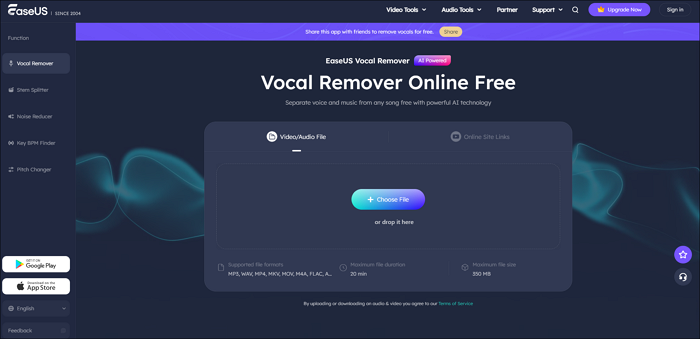
This is where EaseUS Vocal Remover comes in. It is a robust, AI-powered online tool that is quickly becoming a favorite for creators who need professional audio processing without the steep learning curve of professional DAW software.
Why Choose EaseUS Vocal Remover?
EaseUS has developed an advanced AI algorithm that goes beyond simple noise gating. It analyzes the audio file to understand the difference between human speech, musical instruments, and unwanted background artifacts.
One of its standout features is the Noise Reducer. Unlike traditional plugins that require manual tweaking of thresholds and frequencies, the EaseUS AI automatically detects steady and non-steady background noises and wipes them out, leaving the vocal crystal clear. It supports a wide range of formats including MP3, WAV, MP4, and MOV, meaning you can upload your video file directly to the site.
You can try the tool for yourself here: https://vocalremover.easeus.com.
Beyond Just Noise Reduction: Acapella Extraction
Here is where EaseUS really shines and does something Premiere Pro can’t easily do on its own. Have you ever had a video clip with background music that makes the dialogue hard to hear? Or perhaps you are a content creator who wants to remix a song or use a vocal track for a video project?
EaseUS features a dedicated Acapella Extractor. This tool is designed to strip away instrumentals, drums, and bass, leaving you with a pristine vocal track. It is perfect for:
- Podcasters: Isolating dialogue from a recording with background chatter.
- Video Editors: Extracting a clean voiceover from a clip that has loud music baked in.
- Musicians: Creating remixes or practicing karaoke.
The AI analyzes the track and surgically separates the vocal frequencies from the instrumental ones. You can access this specific feature directly at https://vocalremover.easeus.com/acapella-extractor/.
Additional Features for Creators
EaseUS Vocal Remover isn't just a "one-trick pony." It’s a comprehensive audio toolbox. Once you are on the platform, you can explore other features that are incredibly useful for video editors:
- Stem Splitter: Separate a song into four distinct tracks: Vocals, Drums, Bass, and Piano. This gives you ultimate control over the background music in your videos.
- Pitch Changer: Need to change the key of a song to match a video’s mood? You can do that instantly.
- Key & BPM Finder: Perfect for syncing cuts to the beat of the music.
Conclusion
Bad audio doesn't have to be the end of your video project. Adobe Premiere Pro offers robust internal tools like the Essential Sound Panel and the DeNoise effect that can handle most day-to-day noise reduction tasks. These methods are convenient because they keep your workflow inside one application.
However, when you need speed, simplicity, or advanced separation capabilities that go beyond standard denoising, EaseUS Vocal Remover is a game-changer. Whether you are trying to rescue a noisy vlog or extract a clean acapella for a remix, its AI-driven approach saves you time and frustration.
So, next time you hear that dreaded wind rumble or air conditioner hum, you’ll know exactly what to do. Try out the internal tools, and if you need that extra AI magic, give EaseUS a spin to get your audio sounding professional in seconds. Happy editing!
.webp)